Sign In

AI Image Cutout

An image cutout made for sellers: one photo in, and out come the product on a clear background plus the white main image, the square and the detail page pictures your listing needs, all from one full-size cutout.

  • Full size, up to 6000 px
  • Coupang main image 1000 × 1000
  • Detail page widths 860 and 1720 px
  • Up to 20 photos at a time

AI Image Cutout

The AI image cutout uses credits from a plan or a credit pack: 1 credit a photo, and you pay only for the designs you receive. Every file, the shadow and the touch-up brush come with each cutout, and a photo you cut out before opens again without another credit.

credit a photo
1
files from one cutout
5
px detail page width
860
photos in one batch
20

How to cut out image backgrounds

Three steps take a product photo through the image cutout to every file your listing needs.

Drop product photos here

JPG, PNG or WebP, up to 20 photos at a time. You can paste a photo too.

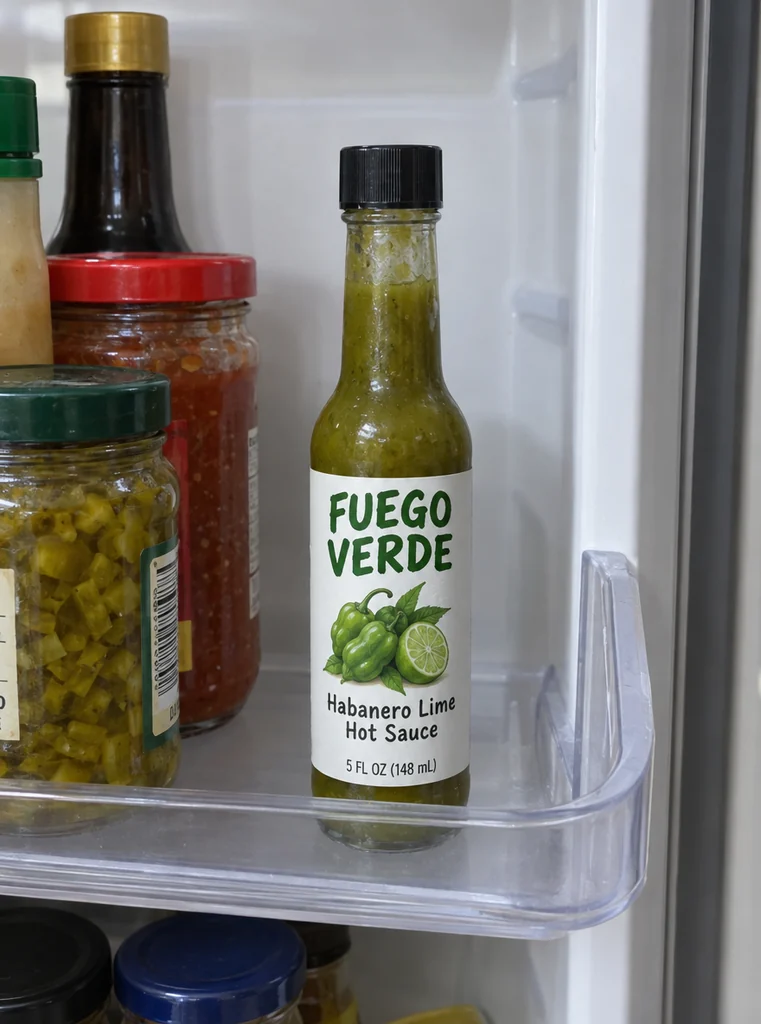
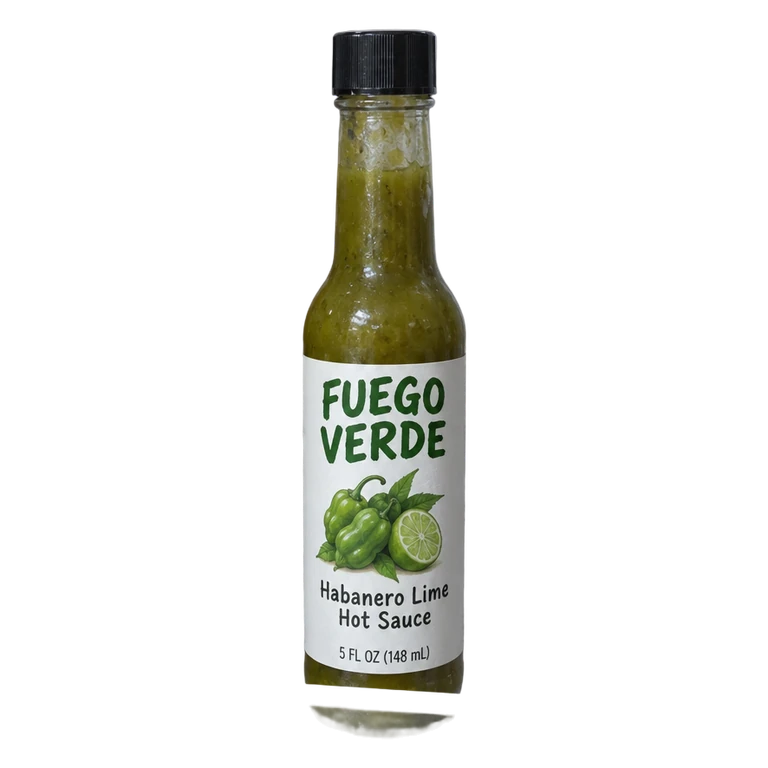
Hot sauce bottle in a fridge door, the photo as it wasHot sauce bottle in a fridge doorReady

What this image cutout does

Made for product photos and the files a marketplace listing asks for.

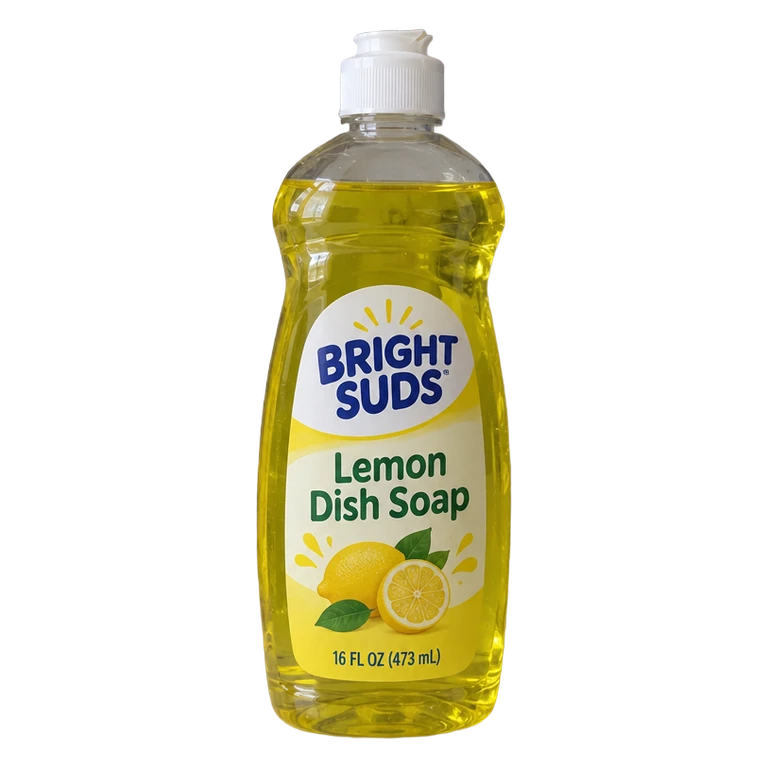
Dish soap bottle on a laundry shelf, cut outTransparent PNG, trimmed
Coupang main image
Detail page, 860 px wide

One ZIP

Five files from one image cutout

A trimmed transparent PNG, Coupang’s main image, a square on white and detail page pictures 860 and 1720 px wide, all from the same cutout, so every picture of the product matches.

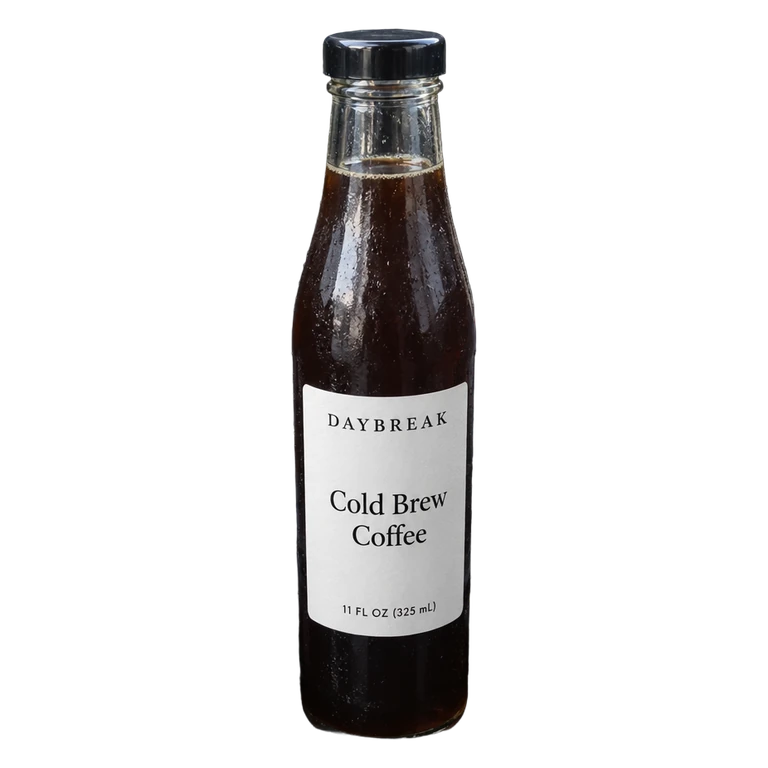
Cold brew bottle in a car cup holder, cut out1000 × 1000

Coupang main image · white RGB 255

Coupang’s main image, ready to upload

Coupang asks for only the product on white, 1000 × 1000 recommended, at least 500 px and up to 10 MB. The file is made at that size with a white background read back at RGB 255.

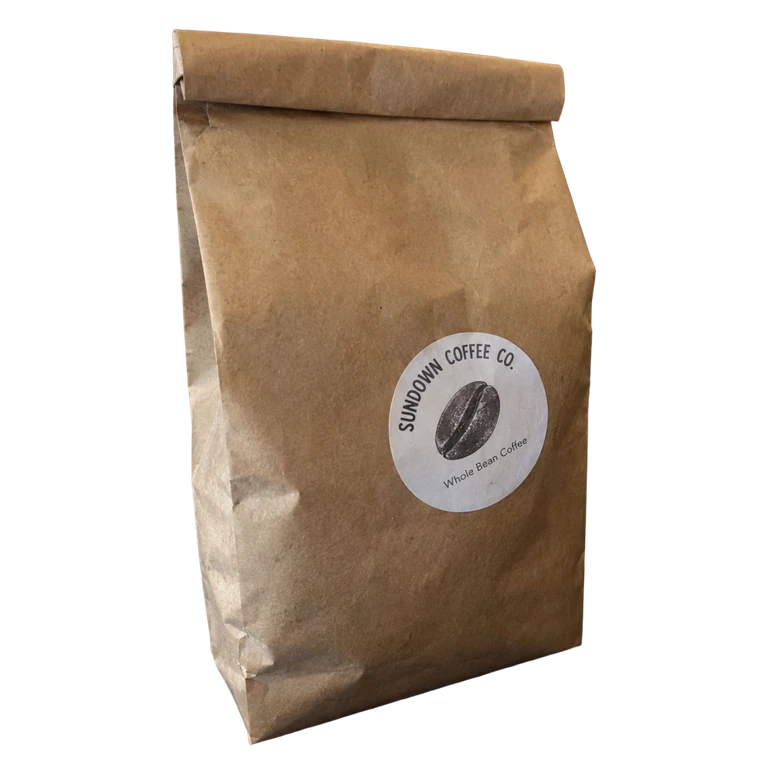
Kraft coffee bag on a shelf, cut outDish soap bottle on a laundry shelf, cut out

A detail page 860 px wide

Pictures for the detail page

Detail pages are built 860 px wide, and twice that for sharp screens. The cutout is set on white at that width with the height the product needs, ready to stack between your text.

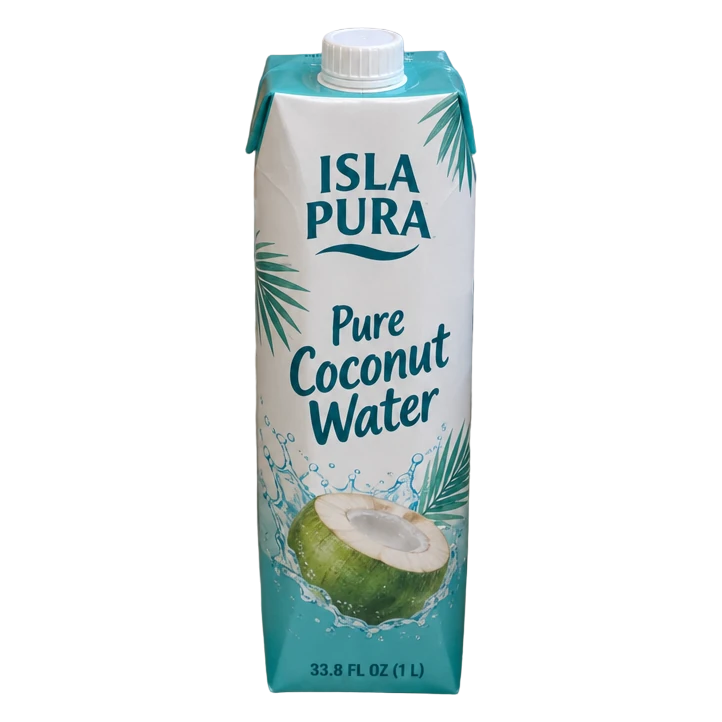
Coconut water carton in a tote, cut outDish soap bottle on a laundry shelf, cut outCold brew bottle in a car cup holder, cut outKraft coffee bag on a shelf, cut outHot sauce bottle in a fridge door, cut out

Up to 20 photos at a time

A whole shoot at once

Cut out image after image: up to 20 photos in one batch, each with the same files and settings, downloaded together in one ZIP.

What an AI image cutout does

An image cutout separates the product from everything around it: the counter, the shelf, the hand holding it. The AI image cutout finds the product’s edge, including glass, caps, labels and soft corners, and keeps every pixel of it at the photo’s own size.

The result is the product on a clear background. From there the page makes the files you upload: transparent for designs, on white for marketplaces, and wide pictures for the detail page, with nothing drawn over the product itself.
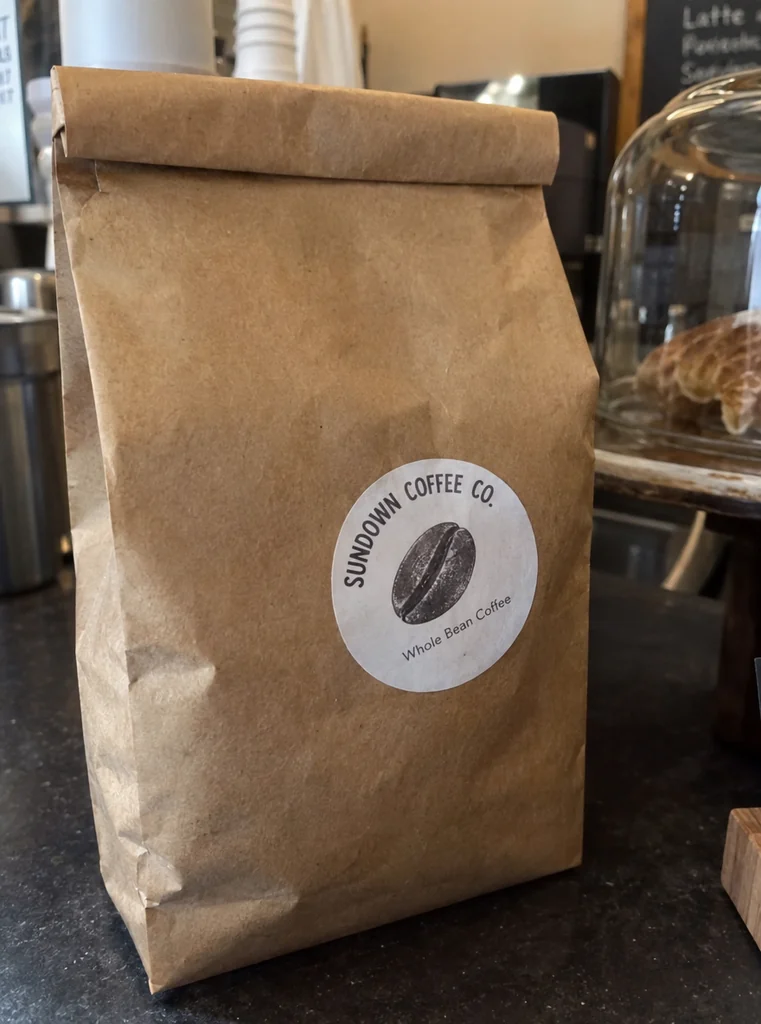
Kraft coffee bag on a shelf, the photo as it was

Before

Kraft coffee bag on a shelf, cut out

After

Cut out image files for Coupang and Smart Store

Coupang’s seller guide asks for a main image showing only the product on a white background, 1000 × 1000 recommended, at least 500 px and no larger than 10 MB, in JPG or PNG. The Coupang file is made to that rule, with the product centred at the share you choose.

Smart Store detail pages are made 860 px wide, so the detail page files come at 860 px and at 1720 px for screens that show twice the pixels. A square on white covers the main image and any shop that takes square pictures.

A shadow, or none

A product on pure white can look as if it floats. Choose a soft shadow on the ground, a drop shadow or a reflection, set how strong it is, and every file on white gets the same one. Leave it at none for a clean cut out image.

The shadow is drawn in your browser from the image cutout, so changing it, or the product’s size in the frame, makes new files at once without another credit.

Touching up the image cutout

When a photo has something touching the product, a hand, a strap, a reflection, paint over it with the Erase brush to clear it, or with Restore to bring back a part of the product. Undo and redo are there for every stroke.

Touch-ups are kept as you make them and applied to every file at every size, so the transparent PNG and the Coupang image always match.

An image cutout for a whole catalog

Add up to 20 photos at once and they are cut out two at a time. The button shows the total before you start: 1 credit a photo. A photo you cut out before, on this page or the other cutout pages, opens again without another credit.

Your recent cutouts stay in the list below the settings, so you can come back for other files later, with a new shadow or size, without cutting the photo out again.

Getting the cleanest cutout

Photograph the product whole, with a little space around it, in even light. A busy background is fine; the AI image cutout looks for the product, not for a plain wall. Glass and clear plastic come out best against a background a little darker than the product.

For a new background around the product, open the AI background generator with the same photo. For a print or a bigger listing image, enlarge the cutout with the AI image upscaler.

Who it is for

Anyone who lists products and needs the same product photo in several files.

Coupang and Smart Store sellers

Main images, squares and detail page pictures from one phone photo of each product.

Small food and beauty brands

Bottles, jars and tubes cut out cleanly for listings, catalogs and social posts.

Detail page designers

Cut out image after image at the width the detail page is built at, ready to lay out.

Resellers with a new batch

Twenty photos through the image cutout in one go, with matching files for each.

Packaging and label designers

Transparent PNGs of a client’s products for mockups and presentations.

Agencies running many shops

The same product files for several marketplaces without opening a photo editor.

Image cutout questions

Cut out a photo

What does the AI image cutout cost?

1 credit a photo, from a plan or a credit pack, and you pay only for the designs you receive. Every file, the shadow and the touch-ups come with the cutout.

Which files do I get from one image cutout?

A trimmed transparent PNG, Coupang’s main image at 1000 × 1000 on white, a square on white, and detail page pictures 860 and 1720 px wide. Tick the ones you need.

Is the cut out image full size?

Yes. The cutout is laid over your original photo at its own size, up to 6000 px on the long side (about 16 megapixels on an iPhone or iPad), so a large photo gives a large transparent PNG.

Does the Coupang file follow Coupang’s rules?

It follows Coupang’s seller guide: only the product on white, 1000 × 1000, under 10 MB. The white background is read back at RGB 255.

Can I add a shadow?

Yes: on the ground, a drop shadow or a reflection, with its strength. Every file on white gets the same shadow.

What if the cutout keeps something next to the product?

Paint over it with the Erase brush, or bring back a part of the product with Restore. Every file follows your touch-ups.

How many photos can the image cutout take at once?

Up to 20, cut out two at a time, with every photo’s files in one ZIP.

Do I pay again for a photo I cut out before?

No. A photo you already cut out, here or on the other cutout pages, opens again without another credit.

Cut out your product photos with the AI image cutout

Every file your listing needs from one full-size cutout.